
Step-by-step WordPress installation guide

How to Install Our DFY PLR Niche Websites

Learn how to install a DFY PLR niche website using the All-in-One WP Migration plugin, with the original video, written instructions and screenshots from our installation tutorial.

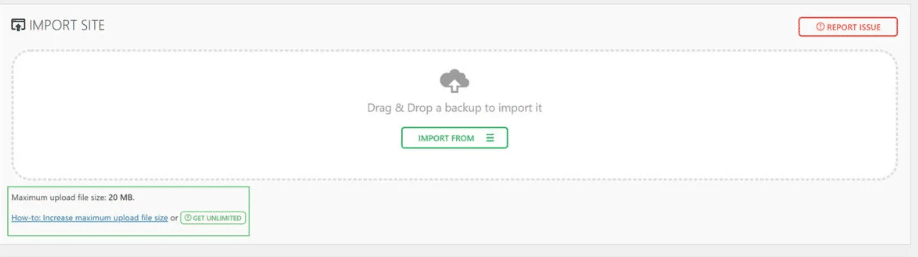
All-in-One WP Migration import screen for installing a DFY PLR niche website
All-in-One WP Migration method

DFY Niche Websites Installation Using the All-in-One WP Migration Plugin

Here’s an easier and quicker way of installing your ready-made blogs without having to upload the backup files to your cPanel. This method requires a pre-installed WordPress site, though.

You can install it on a freshly installed WordPress site or even on an old one that you want to replace.

Important: This process replaces the existing WordPress website. The import process will overwrite your website, including the database, media, plugins and themes. It is not advisable to use this method on an existing website containing content you do not want to lose. Create a complete backup first.

This method is great for:

Any Host and DomainUse it as long as WordPress is already installed.
One-Click WordPress HostsSuitable for web hosts that provide a one-click WordPress installer.
Replacing an Existing SiteUse it to replace an old or existing WordPress installation.
Note: This installation option is available for all PLR niche websites. If you purchased a product previously and need the All-in-One WP Migration file, re-download the product by logging in to the member area or request a fresh download link through the support center.

Original installation tutorial

Watch How to Install DFY PLR Niche Websites

Follow the video tutorial, then use the illustrated instructions below as a reference while completing the installation.

Part 1

Install the All-in-One WP Migration Plugin

1

Open the Add Plugins Screen

On your WordPress dashboard, hover your mouse over the Plugins menu, then click “Add New.”

WordPress dashboard Plugins menu showing Add New for installing the migration plugin
2

Search for the Plugin

Type “all-in-one WP migration” in the search box, then press Enter on your keyboard.

WordPress plugin search for All-in-One WP Migration
3

Locate All-in-One WP Migration

After the page refreshes, the All-in-One WP Migration plugin by ServMask should appear near the top of the results.

4

Install the Plugin

Click the “Install Now” button.

All-in-One WP Migration plugin with the Install Now button
5

Activate the Plugin

Click the “Activate” button. The plugin is now installed and ready to use.

Part 2

Import Files Using All-in-One WP Migration

1

Open the Import Screen

Hover your mouse over the All-in-One WP Migration menu, then click “Import.”

All-in-One WP Migration menu showing the Import option
2

Choose Import From File

Click “Import From,” then click “File.”

All-in-One WP Migration Import From menu with File selected
3

Open the Migration File Folder

Locate where you downloaded the PLR blog, then open the folder named “All-in-One WP Migration File.”

Downloaded PLR niche website files showing the All-in-One WP Migration File folder
4

Select the Import File

Select the file inside that folder and click “Open.” This will trigger the import process.

5

Confirm the Overwrite Warning

A warning box will appear. Click “Proceed” to continue.

All-in-One WP Migration warning that the import will overwrite the existing WordPress website
6

Wait for the Import to Finish

Wait for the import process to complete. You will be notified when the import is successful.

All-in-One WP Migration successful website import confirmation
7

Check the New Website

That’s it. Check your new website. You will need to log in again after the successful import.

Hosting used by DFY Niche Websites

InterServer Web Hosting

We host our websites with InterServer and have used their hosting for more than 10 years. They provide helpful support.

Affiliate disclosure: If you click the banner and purchase hosting, we may receive a small commission for recommending InterServer to you, at no additional cost to you.

InterServer web hosting and VPS for installing WordPress niche websites
Related website resources

Continue Building Your WordPress Website

WP AI Autoblogging Beginners Guide

Learn the fundamentals of WordPress autoblogging.

Read the Guide →

Best WordPress AI Autoblogging Plugin

Explore My Content Creator Pro for publishing WordPress content.

View the Plugin →

Free YouTube Backlink Generator

Explore the free video backlink generator software.

Visit the Tool →

Need Help Installing Your DFY Niche Website?

Use the support center if you need a fresh download link or assistance locating the files included with your purchase.

Visit the Support Center

Cart (0)

  • Your cart is empty.
Cart (0)
  • Your cart is empty.